Updated September 21, 2026
WARDOGS Best Settings for FPS and Visibility
Build a stable WARDOGS graphics baseline, use the Season 1 frame-generation and shadow changes, and test visibility without unsupported FPS promises.
Build a safe starting profile
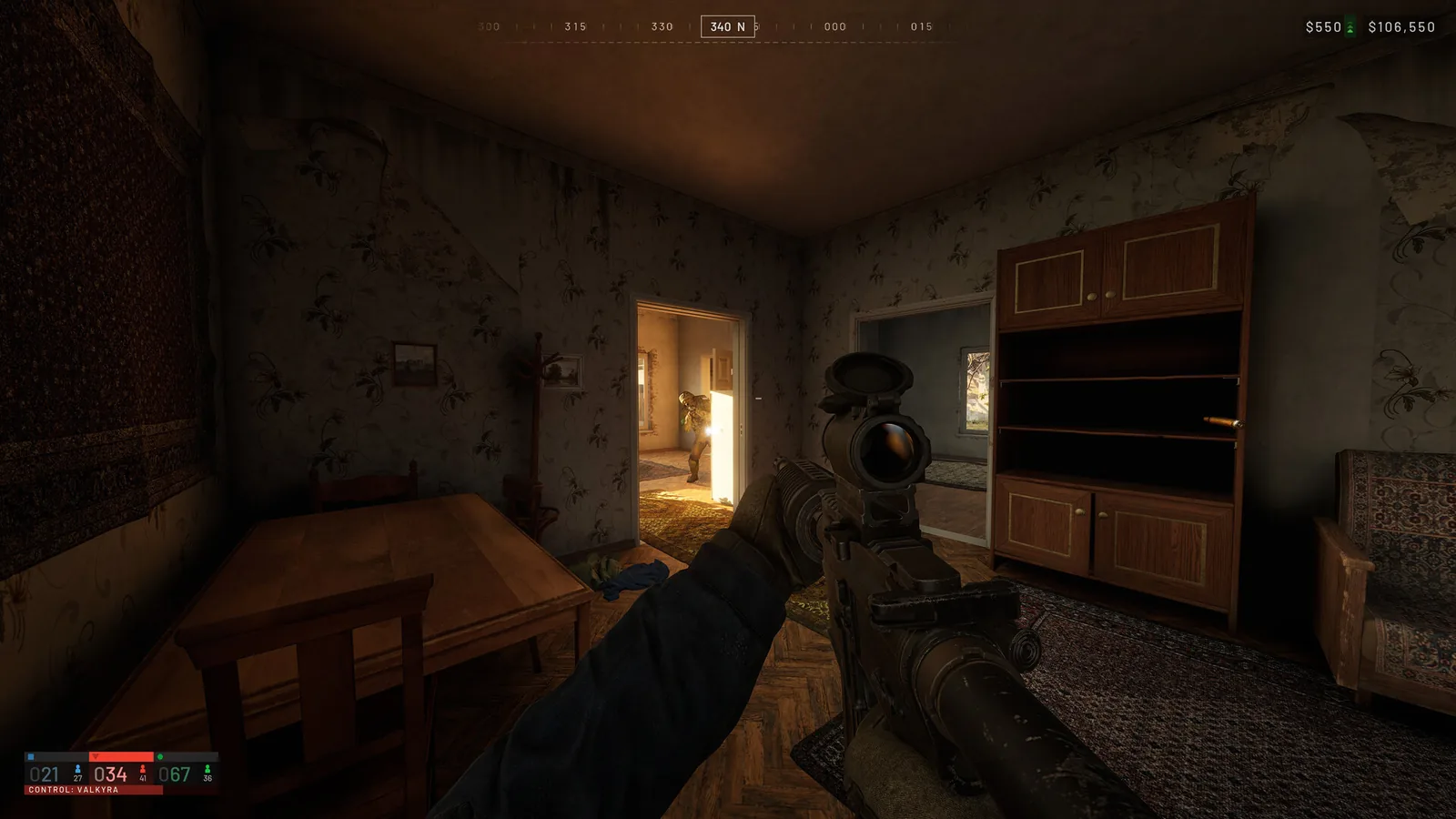
Use the monitor’s native resolution, then choose the upscaler that matches the GPU: DLSS for supported NVIDIA RTX cards, FSR as the broad AMD and cross-vendor option, or XeSS when it produces the clearest result on the installed hardware. Begin with Quality at 1080p or 1440p before trading more image quality for performance.
For a clear starting image, disable motion blur and depth of field if they make targets harder to track. Medium shadows and post-processing are reasonable first reductions; keep view distance and mesh detail higher until a repeatable test shows they are the bottleneck.
| Goal | Start with | Change next |
|---|---|---|
| Stable frame time | Native resolution plus Quality upscaling | Reduce shadows and post-processing one step |
| Clear movement | Motion blur and depth of field off | Compare sharpening and anti-aliasing in motion |
| VRAM pressure | Texture quality matched to available VRAM | Lower world textures before changing every setting |
| Input response | V-Sync and frame generation tested separately | Keep the combination only if latency and pacing both improve |
Measure the same scene, not the menu
Record resolution, upscaler, quality preset, frame limit and the exact map situation. Test one quiet area and one populated objective because average FPS can hide a poor combat frame time.
Change one graphics group, replay the same view and keep the change only when the result is repeatable. A creator’s benchmark can suggest where to start but cannot predict a different CPU, GPU, driver or full-server load.
Keep visibility changes honest
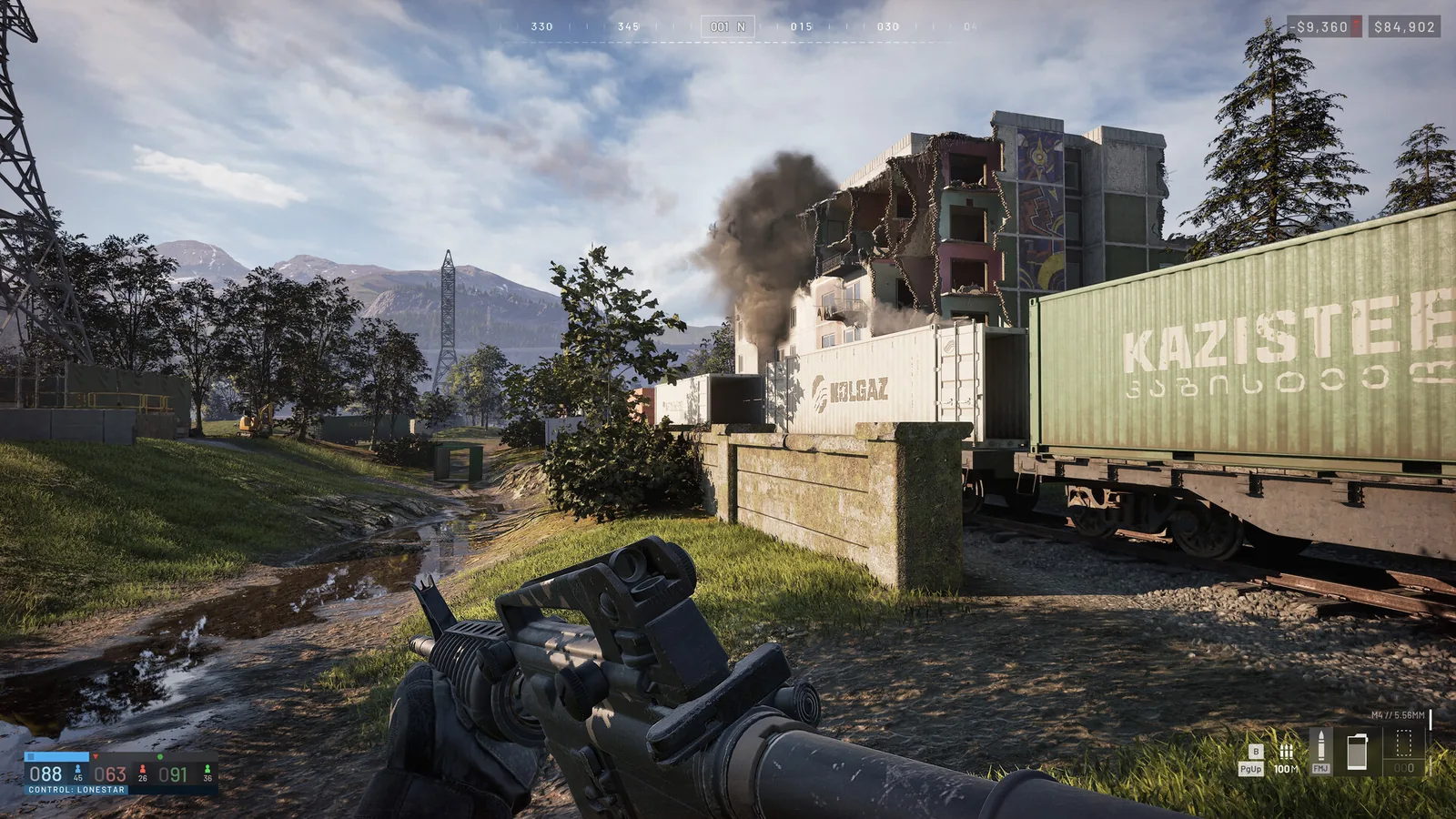
Compare distant silhouettes while moving, not only a still screenshot. Excess sharpening can create noisy edges; very low effects can hide useful state changes; aggressive upscaling can soften thin targets.
Use the profile that lets you read the battlefield while holding a stable frame time. There is no evidence that one universal competitive preset is best for every WARDOGS player.
Use the Season 1 graphics controls deliberately
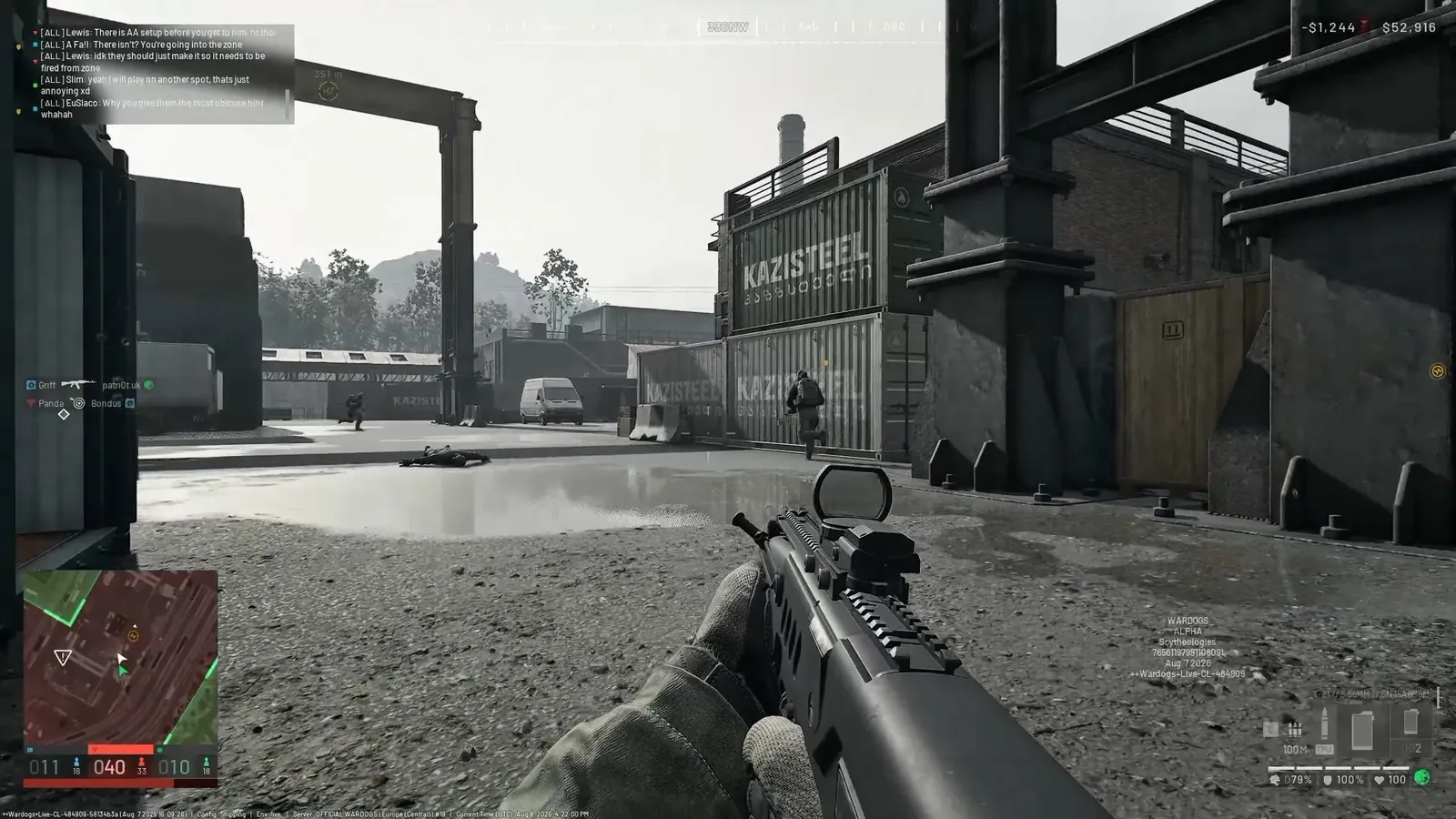
The official Season 1 changelog says DLSS Frame Generation can be turned off without restarting and that the render-target pool is configurable. It also reports fewer shadow-cache refreshes and changes the high-benchmark result from disabling shadows to clamping them at Low.
These are control and stability changes, not a universal best preset. Compare frame pacing and input response before and after each toggle on the same hardware and scene.
Fix one symptom at a time
For low GPU utilization, check the CPU load, frame cap, V-Sync and whether the game is using the intended graphics card. For sudden texture softness, inspect the upscaler mode and texture setting before lowering unrelated options.
Save the working profile before a driver or game update. If a patch resets settings, compare the changed page against the saved baseline instead of rebuilding everything from memory.
Sources and further reading
Official WARDOGS Steam store page →
Official WARDOGS Season 1 changelog — September 9, 2026 →
WARDOGS graphics and audio settings — Mobalytics →
KEEP READING